App preview
Inside Trade Master 9.
From the Play Store listing to a live chart, the whole path takes about two minutes.
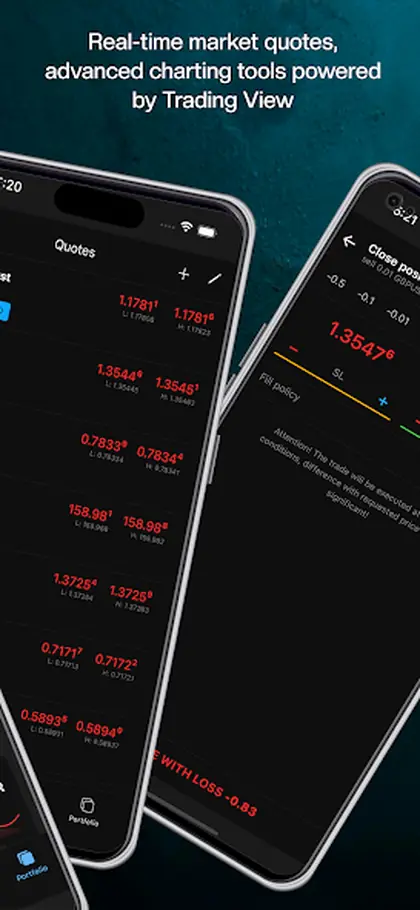
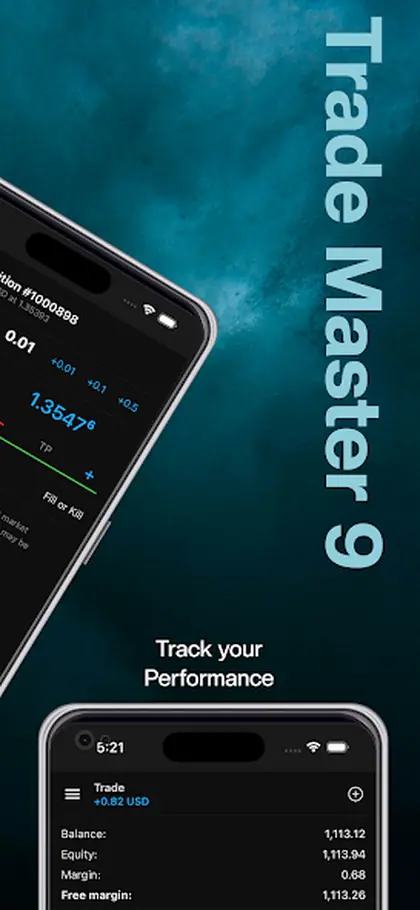
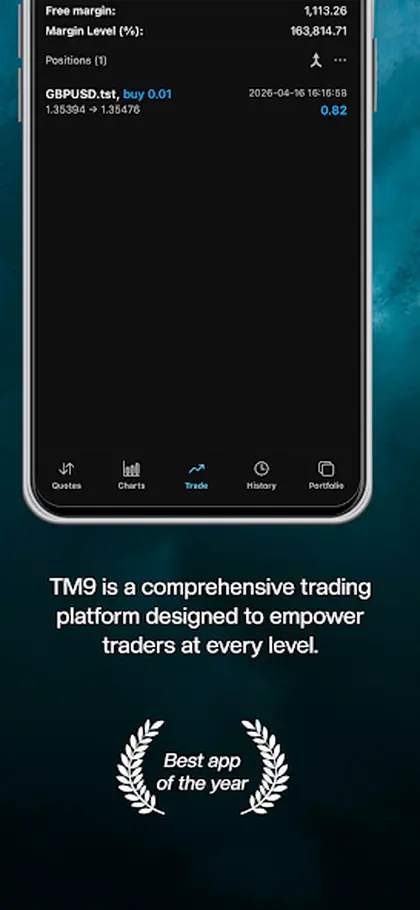
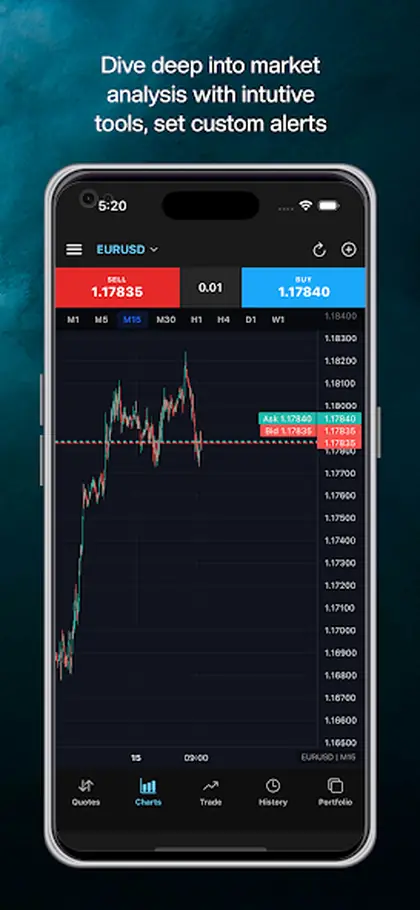
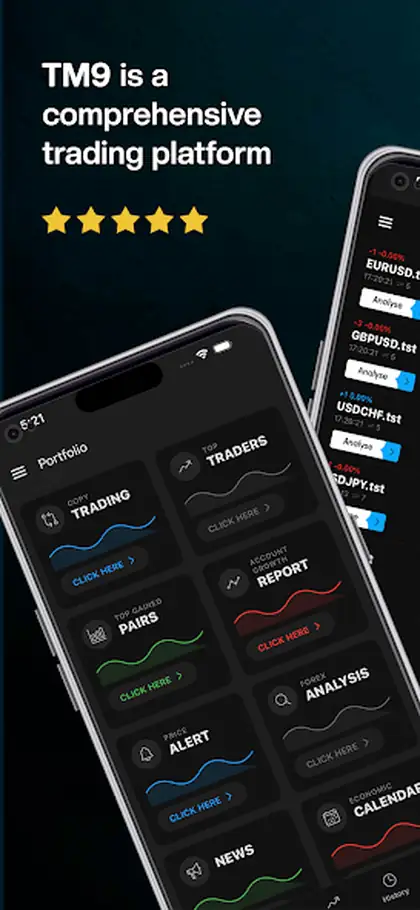
Installing a trading mobile app for Forex and exchange market operations takes a couple of minutes on Android.
From the Play Store listing to a live chart, the whole path takes about two minutes.
Installing a trading mobile app for operations in the Forex and exchange markets should not need a manual, and on Android it does not. Download TM9 from the Play Store on your smartphone or tablet, open it, sign in, connect your broker, and you are looking at live prices. The whole sequence usually takes less time than making a coffee.
The steps in order: open Google Play, search for TM9, tap Install, wait for the download, then open the app. Sign in with your account details and link the broker account you trade through — that connection is what turns the app from a price viewer into a trading terminal, because orders you place are sent straight to that broker, who holds your funds.
Two prompts appear during first use and both are worth accepting. Notifications, because alerts are the main reason a phone app earns its place between sessions; a declined prompt silently removes price, volatility and news alerts until you re-enable it in system settings. And biometric sign-in on devices that support it, which keeps opening the app quick enough that you actually check positions rather than putting it off.
Then spend five minutes on setup. Build a watchlist of the instruments you follow, open a chart, add the studies you use and save the layout. That work is not device-specific: it syncs to the Web Terminal and the desktop terminal automatically, so it only ever has to be done once, and it is waiting on any new device you sign in to later.
If you want to see everything the app can do before starting, the TM9 home page covers it in full.
From the Play Store listing to a live chart, the whole path takes about two minutes.
Step-by-step: install the TM9 Android app from the Play Store and get to your first chart.
Build a watchlist, open a chart and save a layout. That work carries over to the Web Terminal and the desktop terminal automatically.
Allow notifications when the app asks, otherwise price, volatility and news alerts have nowhere to land.
Three short notes on how this works day to day.
The step people skip is notifications. Alerts are the main reason a phone app is useful between sessions, and a declined permission prompt quietly removes that benefit until you re-enable it in system settings.
You need a broker account to place live orders. Without one you can still install the app, sign in and look around, which is a reasonable way to see whether the platform suits you.
This page is for anyone installing TM9 on Android for the first time, and for brokers writing onboarding instructions for their clients.
How download sits inside the Trade Master 9 platform.
TM9 2.0 is rolling out on iOS and Android, and full-fledged trading runs without a desktop computer anywhere in the picture. The mobile apps carry the full trading function, technical indicators, graphical objects, account monitoring and trading history. Where installing is not possible, the Web Platform runs the same account from any browser on Windows, Mac or Linux with only an internet connection.
TM9 is a software development company and does not provide investment or brokerage services. The platform supplies the trading terminals, analysis tools and automation; your broker holds the funds, sets spreads and leverage, and executes the orders the platform sends. Trading carries a real risk of loss, and signals or robots are tools rather than financial advice.
Install on iPhone. What You Need. Updating the Mobile App. Or open the Platform Guide for all 77 pages.