App preview
Inside Trade Master 9.
From the App Store listing to a live chart, the setup runs in five short steps.
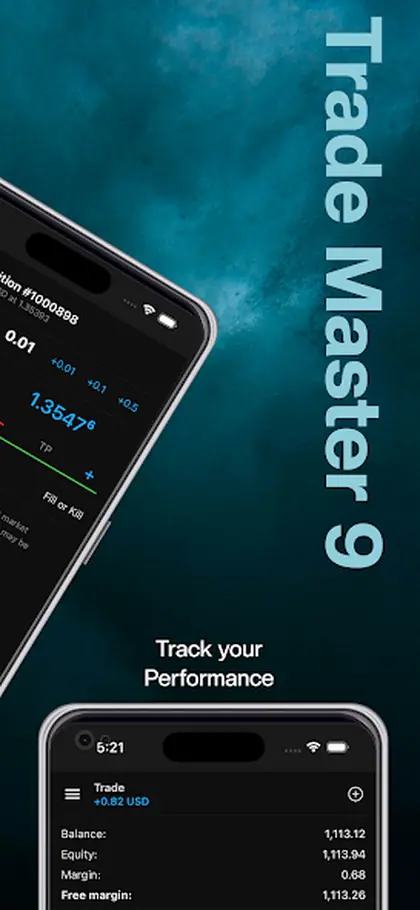
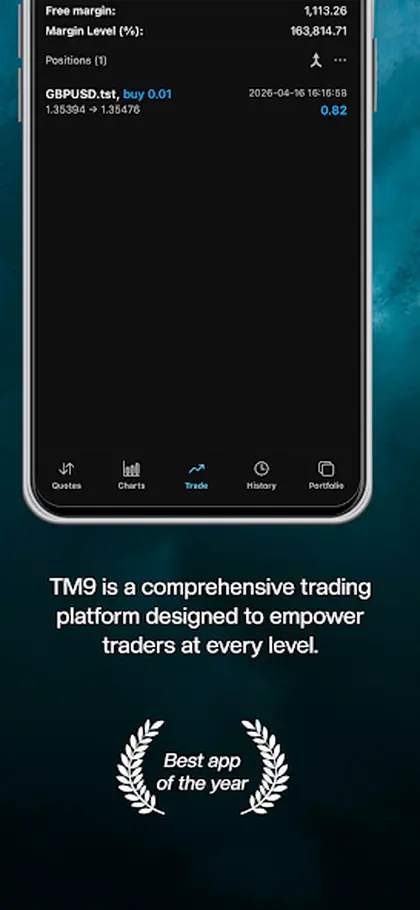
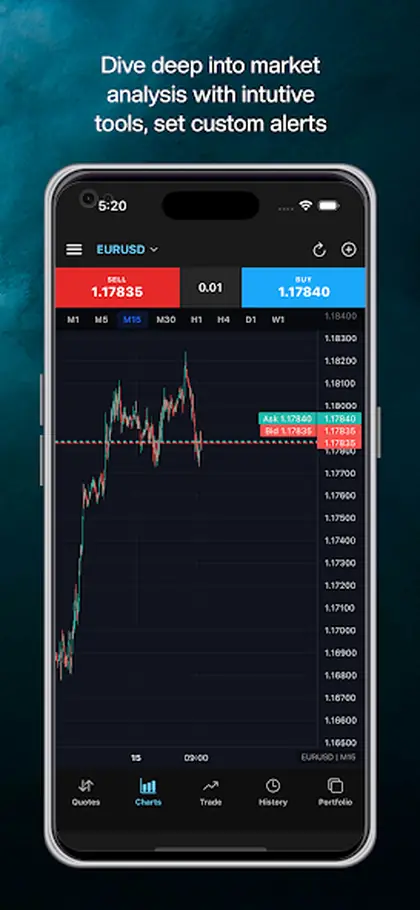
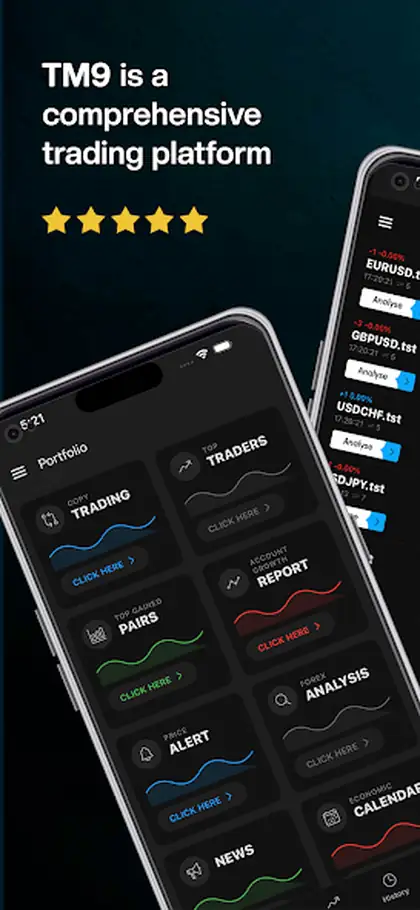
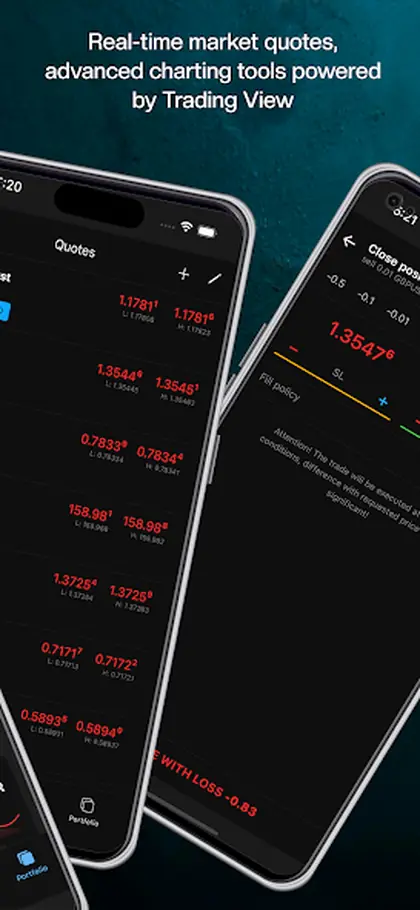
Downloading a trading mobile app for the Forex and exchange markets on an iPhone is a five-step job.
From the App Store listing to a live chart, the setup runs in five short steps.
Download the TM9 mobile app for the Forex and exchange markets from the App Store on your iPhone or iPad, and the setup runs in five short steps. Open the App Store, search for TM9, tap Get and confirm with Face ID, Touch ID or your Apple ID, open the app, and sign in. Connecting your broker account is the only step left before you can place a live order.
Apple handles the technical side, which is why this is a shorter list than it would be elsewhere: signing, installation and future updates all go through the store. Leaving automatic app updates enabled means each new release reaches you without a decision, which matters on a platform where the engine, the charting and the security have all been rewritten recently.
During first use, accept the notifications prompt and turn on biometric sign-in. The first lets alerts reach your phone or watch when a price level, a volatility spike or a news release matters. The second removes the password step from a dozen daily app opens, which sounds trivial until you notice how often you check positions when it is quick and how rarely when it is not.
Setup after that is a five-minute job you do once: a watchlist of the instruments you follow, a chart with your studies, a saved layout, and a decision about risk per trade. All of it lives with the account, so the iPad you install next week already has it, as do the Web Terminal and the desktop terminal.
The TM9 home page has the complete detail on the app, its features and both store links.
From the App Store listing to a live chart, the setup runs in five short steps.
Step-by-step: install the TM9 iOS app from the App Store, sign in and connect your broker.
Turn on biometric sign-in when the app offers it, so opening the app takes a glance rather than a password.
Accept the notifications prompt, otherwise alerts you set later will not reach the phone.
Three short notes on how this works day to day.
iPad users often install on both devices at once. Because the account carries watchlists and layouts, the second install needs no setup beyond signing in.
The App Store listing shows the iOS version the current build requires. If your device is on an older release, updating iOS first avoids an install that fails halfway.
This page is for iPhone and iPad owners setting up TM9, and for support teams walking a client through it on a call.
How download sits inside the Trade Master 9 platform.
TM9 2.0 is rolling out on iOS and Android, and full-fledged trading runs without a desktop computer anywhere in the picture. The mobile apps carry the full trading function, technical indicators, graphical objects, account monitoring and trading history. Where installing is not possible, the Web Platform runs the same account from any browser on Windows, Mac or Linux with only an internet connection.
TM9 is a software development company and does not provide investment or brokerage services. The platform supplies the trading terminals, analysis tools and automation; your broker holds the funds, sets spreads and leverage, and executes the orders the platform sends. Trading carries a real risk of loss, and signals or robots are tools rather than financial advice.
What You Need. Updating the Mobile App. Your First Sign-In. Or open the Platform Guide for all 77 pages.